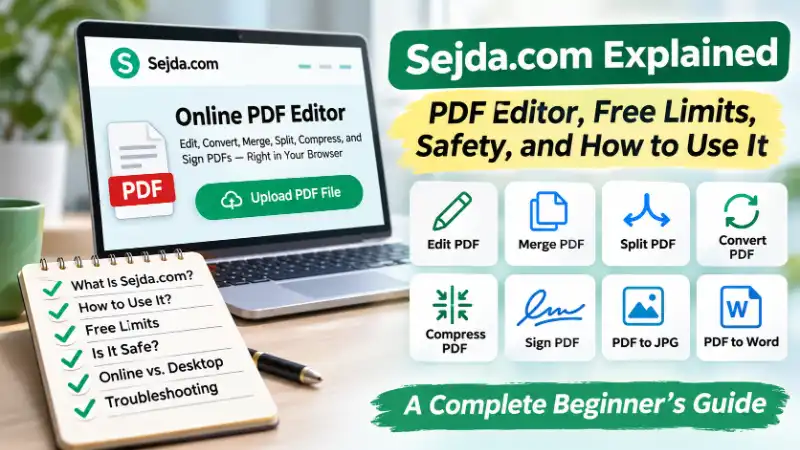
Need to edit a PDF but don’t want to buy expensive software? Maybe you need to fix a mistake in a document, sign a form, merge several PDF files, or turn a PDF into a Word document. Sejda.com offers tools for these jobs right in your browser.
But before uploading your files, you probably have a few questions. Is Sejda free? Can it actually change existing PDF text? Is it safe for private documents?
This guide explains what Sejda does, how to use its PDF editor, what its free version includes, and when another tool might be a better choice.
FIND YOUR AGE - IN YEARS, MONTHS, DAYS, HOURS & SECONDS!
What Is Sejda.com, and What Can You Do With It?
Sejda.com is an online PDF editing and document management platform. It allows you to edit, convert, merge, split, compress, and organize PDF files without installing a full PDF editing program.
The platform also offers a desktop application for people who prefer working with files on their computers.
You can visit the official website at Sejda.com and choose a tool based on what you want to do.
For example, imagine your teacher sends you a PDF worksheet. You need to add your answers, but the file won’t open in Microsoft Word the way you expected.
Instead of printing the worksheet, writing on paper, and scanning it again, you can open Sejda’s PDF editor and type directly into the document.
The same idea works for many everyday tasks.
You can use Sejda to:
- Edit existing PDF text or add new text.
- Fill out PDF forms and add signatures.
- Merge several PDF documents into one file.
- Split a large PDF into smaller documents.
- Convert PDF files into Word documents or images.
- Convert Word documents and JPG images into PDFs.
- Compress large PDF files to reduce their size.
- Add watermarks, remove unwanted pages, or rotate pages.
- Repair certain damaged PDF files.
- Straighten tilted scanned pages.
- Flatten form fields and annotations into a PDF.
These tools can help students, office workers, freelancers, small businesses, and anyone who handles digital documents.
One important thing to understand is that Sejda is not the same as Microsoft Word or Google Docs. It is mainly designed for working with PDF documents.
If you need to write a long report from scratch, a word processor is usually easier. If you need to change or organize an existing PDF, Sejda may be useful.
How to Edit a PDF With Sejda Online
You don’t need advanced computer skills to start editing a PDF with Sejda.
The online editor provides tools for adding text, changing existing text, inserting images, signing documents, and making other common adjustments.
Here is how to use Sejda PDF Editor.
Step 1: Open the Official PDF Editor
Visit the Sejda PDF Editor.
You will see an option to upload a PDF document.
Choose a file from your computer or use another available import option shown on the page.
For a first attempt, use a small, non-sensitive PDF so you can learn how the editor works.
Step 2: Upload Your PDF File
Select the document you want to edit.
Wait for Sejda to process the file and display its pages in the editing workspace.
If the document is large, loading may take longer.
You may also encounter a restriction if the file exceeds the limits of the free service.
Once the PDF opens, look at the editing toolbar.
Step 3: Edit Existing Text or Add New Text
Sejda provides a Text tool for changing text inside supported PDF documents.
To edit existing text:
- Select the Text tool.
- Click the text you want to change.
- Make your correction.
- Adjust the available formatting options if necessary.
- Review the edited text before saving.
For example, suppose your PDF contains this sentence:
“The meeting starts at 9:00 AM.”
You need to change it to:
“The meeting starts at 10:00 AM.”
If Sejda can recognize and edit that text, you can make the correction without rebuilding the entire document.
You can also add new text to a blank area of the page.
This is useful when completing forms, adding notes, or inserting missing information.
Important: Not every PDF allows the same type of editing.
A PDF containing selectable text is different from a scanned page that stores text as an image. A scanned document may need optical character recognition (OCR) before its text can be edited normally.
Even with an editable PDF, unusual fonts and complex layouts can cause formatting changes.
Step 4: Add Images, Links, or Signatures
Sejda includes tools for adding more than plain text.
Depending on the document and available editing options, you can:
- Insert an image.
- Add a hyperlink.
- Create a text box.
- Fill out a form.
- Draw or insert a signature.
- Add shapes or annotations.
For example, if you receive a permission form that needs your signature, you may be able to sign it without printing the document.
Open the signature feature, choose one of the available signature methods, position the signature, and review the result.
Remember that adding a visual signature is not necessarily the same as applying a certificate-based digital signature. Some organizations require a particular electronic signing process.
Step 5: Apply Changes and Download the PDF
After editing your document, select Apply changes.
Sejda will process the edited PDF.
When the download option appears, save the finished file to your device.
Before sending the document to someone else, open the downloaded version and check:
- Is the corrected text visible?
- Did the page layout remain consistent?
- Are images and signatures in the right places?
- Did any text move or disappear?
- Does the document open correctly in another PDF viewer?
This final check matters because a PDF can look correct inside an editor but display differently after processing.
For important documents, keep an untouched copy of the original file.
What Other PDF Tools Does Sejda Offer?
The PDF editor is only one part of Sejda.
The website also provides individual tools for common document problems. You don’t always need to open the full editor to complete a task.
Here are some of the main Sejda PDF tools and what they do.
| Sejda tool | What it does | When to use it |
|---|---|---|
| Merge PDF | Combines multiple PDF files | Joining reports or assignments |
| Split PDF | Separates pages into new files | Extracting chapters or sections |
| PDF to Word | Converts PDF content into an editable document | Making larger text changes |
| PDF to JPG | Converts PDF pages into images | Creating image versions of pages |
| JPG to PDF | Turns images into PDF documents | Combining scanned photos |
| Word to PDF | Converts Word documents into PDF format | Sharing finished documents |
| Compress PDF | Reduces PDF file size | Preparing email attachments |
| Sign PDF | Adds a signature to a document | Signing basic forms |
| Flatten PDF | Makes certain interactive elements part of the page content | Preparing completed forms |
| Repair PDF | Attempts to fix damaged PDF files | Opening a problematic document |
| Deskew PDF | Straightens tilted scanned pages | Cleaning up scans |
| Watermark PDF | Adds text or image watermarks | Marking drafts or copies |
Let’s look at a few of these tools more closely.
How to Merge PDF Files With Sejda
Imagine you have five separate PDF files for a school project, but your teacher wants everything in one document.
You can use Sejda Merge PDF to combine them.
Open the merge tool, upload your files, arrange them in the correct order, and start the merge process.
Download the finished PDF and check that all pages appear in the right sequence.
This is especially helpful for reports, invoices, applications, and multi-part assignments.
How to Split a PDF With Sejda
Sometimes the problem is the opposite.
You have one large PDF but need only a few pages.
Sejda’s splitting tools can help separate a document into smaller files or extract selected pages.
For example, you might have a 60-page manual but only need pages 15 through 20.
Rather than sharing the entire manual, you can extract the relevant section.
Sejda also offers a specific tool called Split PDF Down the Middle.
This is different from ordinary page extraction. It is designed for documents where one page contains two side-by-side pages, such as a scanned book spread.
How to Convert PDF to Word
If you need to rewrite several paragraphs, converting a PDF into a Word document may be easier than editing everything inside a PDF editor.
Sejda provides PDF-to-Word conversion.
After converting, open the resulting document in a compatible word processor.
Check the formatting carefully. Tables, columns, unusual fonts, and scanned text may not convert perfectly.
For scanned PDFs, OCR may be needed to recognize the text.
How to Convert PDF to JPG or JPG to PDF
Sejda PDF to JPG can turn document pages into image files.
This may help when you need a picture of a PDF page for a presentation or another visual project.
The JPG to PDF tool works in the opposite direction.
For example, if you photograph several pages of handwritten notes, you can turn those images into a PDF document.
Keep in mind that converting a PDF page into a JPG usually removes its normal selectable-text behavior because the page becomes an image.
What Do Flatten, Repair, and Deskew Mean?
These three tools sound technical, but their purposes are simple.
Flatten PDF: Makes certain form fields, annotations, and other interactive elements part of the page content. This can help preserve the appearance of a completed document, although it may also prevent further editing of those elements.
Repair PDF: Attempts to recover or fix a damaged PDF file. It cannot guarantee that every corrupted document will be restored.
Deskew PDF: Straightens scanned pages that appear tilted. This can make scanned documents easier to read and prepare for later processing.
Sejda also offers watermarking and other page-management features.
You can explore the available tools from the official homepage rather than installing a separate application for every small PDF task.
Is Sejda Free? What Are the Usage Limits?
Yes, Sejda offers free PDF editing and document tools, but free use comes with restrictions.
This is one of the most important things to understand before starting a large project.
You may be able to complete a small PDF task without paying. However, larger documents or repeated operations can trigger usage limits.
Sejda Free Limits for Online Users
Sejda’s online service has historically applied restrictions involving:
- The number of tasks completed within a certain period.
- Maximum file size.
- Maximum document length.
- Tool-specific processing limits.
- Access to certain advanced capabilities.
The online PDF editor has displayed a free allowance of three tasks per hour and a file-size limit of 50 MB.
However, the exact restrictions can vary between tools and may change over time.
A merge operation, PDF conversion, and editing session may not have identical limits.
Always check the restriction displayed by the tool you plan to use.
For example, if you need to edit one short assignment, the free version may be enough.
If you need to process dozens of large PDFs, free restrictions could interrupt your workflow.
What Are Sejda’s Daily Limits?
People sometimes search for “Sejda daily limits,” but it is important not to confuse hourly, daily, and task-specific restrictions.
Some restrictions may be based on the number of operations during a time window. Others depend on file size or page count.
The desktop application can also have different free-use allowances from the online service.
Do not assume that completing one task on the website gives you the same allowance inside the desktop application.
For the current rules, visit the official Sejda pricing page.
Is Sejda Premium Worth Paying For?
Sejda offers paid options for people who need more than the free allowance.
A paid plan may make sense if you regularly:
- Edit large PDF documents.
- Process many files.
- Work with documents that exceed free limits.
- Need fewer interruptions during editing.
- Use Sejda for repeated business or school tasks.
The official pricing page provides the current subscription options and included features.
Prices can change, so checking the live pricing page is more reliable than relying on an old review.
For someone who edits a PDF only once or twice a month, the free version may be enough.
For someone who works with PDFs every day, a paid plan or another professional PDF editor may be more practical.
Is Sejda.com Safe for Editing PDF Files?
Sejda is an established PDF editing service with an official website, documented features, and published policies.
However, being a genuine PDF service does not automatically mean every document is safe to upload.
The right safety decision depends on what your PDF contains and how you plan to process it.
What Happens to Files Uploaded to Sejda?
When you use an online PDF editor, your document may need to be uploaded to the service for processing.
That means the file is not necessarily staying only on your computer.
Sejda publishes information about its file handling and privacy practices.
Its stated approach includes deleting uploaded files after a limited retention period. Historically, the service has described automatic deletion after two hours.
You should check the current Sejda Privacy Policy for the exact rules, exceptions, and handling of personal information.
It is also important to distinguish between a company’s published policy and independent verification.
A privacy policy tells you what the provider says it does. It is not, by itself, proof that every security control has been independently tested.
Should You Upload Confidential Documents?
Think about what is inside the PDF before uploading it.
A basic school worksheet or public brochure carries a different level of risk from a document containing sensitive personal information.
Be more careful with documents containing:
- Social Security numbers.
- Bank account information.
- Medical records.
- Private financial statements.
- Government identification documents.
- Confidential business agreements.
- Passwords or account recovery details.
For highly sensitive files, consider using an approved local PDF editor or the software required by your school, employer, or organization.
If your workplace has a document security policy, follow it instead of assuming any online editor is approved.
Is Sejda Desktop More Private Than the Online Editor?
Sejda describes its desktop PDF processing as taking place locally on your computer.
This can reduce the need to upload document contents to an online processing service.
However, local processing does not mean the application never communicates with the internet.
Licensing, software updates, and optional diagnostic features may involve network communication.
If privacy is your main concern, read the desktop application’s current documentation and privacy policy before using it.
Important: Whiteout Is Not Secure PDF Redaction
One safety detail deserves special attention.
Some PDF editors offer a whiteout feature that visually covers text.
But covering text with a white box does not necessarily remove the underlying information from the document.
In some cases, the hidden text may still be recoverable.
Sejda’s own editor documentation warns that whiteout should not be treated as a secure method for removing sensitive information.
If you need to permanently remove a Social Security number, account number, or other confidential detail, use a proper PDF redaction tool.
After redacting, verify that the information cannot be selected, searched, copied, or recovered through normal document inspection.
Bottom line: Sejda can be useful for ordinary PDF work, but sensitive documents require a more careful approach.
Sejda Online vs. Sejda Desktop: Which Should You Use?
Sejda offers two main ways to work with PDF files: the browser-based tools and the desktop application.
They serve similar purposes, but the experience is not exactly the same.
| Feature | Sejda Online | Sejda Desktop |
|---|---|---|
| Installation | No installation required | Software installation required |
| Access | Through a web browser | Through a desktop application |
| Internet | Needed to access online tools | Core document processing can be local |
| File handling | Documents may be uploaded for processing | Document processing is described as local |
| Best for | Quick, occasional tasks | Repeated or local PDF work |
| Free limits | Online tool restrictions | Separate desktop restrictions |
| Devices | Compatible web browsers | Supported desktop operating systems |
When Sejda Online Makes More Sense
Choose the online version when you need to complete a quick task and don’t want to install anything.
For example, you might need to merge two PDF files or correct a short document.
Open the website, complete the task, and download the result.
It is convenient when you are using a computer where installing new software is difficult.
When Sejda Desktop Makes More Sense
The desktop application may be a better choice if you regularly work with PDF files or prefer local processing.
Sejda provides desktop software for Windows, macOS, and Linux.
The desktop version may also be useful when you want to work without relying on browser-based uploads for every operation.
Before installing, download the application from the official Sejda Desktop page.
Avoid unknown websites offering modified versions, unofficial installers, or supposedly unlimited premium copies.
Why Is Sejda Not Working? Common Problems and Fixes
Sometimes Sejda may not work the way you expect.
A document might fail to upload, text may refuse to change, or the edited file might not download.
The cause is not always a problem with the website itself.
Here are several common situations and what you can try.
1. Sejda Says You Have Reached a Free Limit
Possible cause: You have completed too many tasks during the allowed period or your file exceeds a restriction.
What to do: Check the displayed limit message. Wait for the applicable allowance to reset, use a smaller eligible document, or review the paid options.
Do not repeatedly upload the same sensitive document just to test whether the limit has changed.
2. Sejda Cannot Edit Existing PDF Text
Possible cause: The document is scanned, the text is stored as an image, or the PDF uses a structure that the editor cannot modify properly.
What to do: Try selecting the text in a PDF viewer.
If the text cannot be selected, the document may require OCR.
If the text is selectable but still cannot be edited, font or document structure issues may be involved.
For large changes, converting the PDF to Word may be easier.
3. The PDF File Will Not Upload
Possible cause: The file is too large, damaged, password-protected, or affected by a browser or network problem.
What to do:
- Check the file size.
- Make sure the PDF opens normally on your device.
- Confirm whether the document requires a password.
- Refresh the editor and try again.
- Test another supported browser.
- Check your internet connection.
If the document is damaged, Sejda’s Repair PDF tool may help, although recovery is not guaranteed.
4. Sejda Is Not Saving or Downloading the Edited PDF
Possible cause: Processing has not finished, the browser is blocking the download, or the editing session has expired.
What to do: Wait for processing to finish and look for an error message.
Check your browser’s download settings and available storage.
If the editor reports a failed operation, follow its instructions rather than assuming your changes were saved.
For longer editing tasks, work from a backup and save completed versions when possible.
5. The PDF Formatting Changes After Editing
Possible cause: The document uses unusual fonts, complicated layouts, or text elements that the editor cannot reproduce exactly.
What to do: Make smaller edits and inspect the result after each important change.
If you need to rewrite entire paragraphs, consider editing the original Word document or converting the PDF into an editable format.
Complex PDF editing is not always as straightforward as editing a Word file.
6. Sejda Opens but Runs Slowly
Possible cause: Large files, many pages, complex graphics, limited device memory, or network conditions.
What to do: Close unnecessary browser tabs, try a smaller document, and check your connection.
If you frequently work with large PDFs, the desktop version or another PDF application may provide a more suitable workflow.
These steps are general troubleshooting suggestions, not guarantees that every issue will be fixed.
Is Sejda Better Than Other Free PDF Editors?
Sejda is one of several PDF tools available online.
Whether it is the best choice depends on the type of work you need to complete.
Some people need to make a quick text correction. Others need advanced document editing, electronic signatures, OCR, or frequent conversions.
Here is a practical comparison.
| PDF editor | Main strength | What to consider |
|---|---|---|
| Sejda | Browser-based PDF editing and individual PDF tools | Free usage limits |
| Adobe Acrobat | Extensive professional PDF features | Many advanced functions require payment |
| iLovePDF | Simple PDF conversion and organization tools | Some features and limits depend on the plan |
| PDFgear | Free PDF editing features and desktop options | Check current platform and feature support |
| Smallpdf | Easy online PDF tasks | Free and paid usage restrictions |
Sejda vs. Adobe Acrobat
Adobe Acrobat is designed for a wide range of PDF workflows, including professional document editing and advanced features.
Sejda may be easier to approach when you need a quick correction or simple document task.
However, users working with complex layouts, advanced forms, or specialized PDF requirements may prefer Acrobat’s broader toolset.
Compare the features you actually need rather than choosing based only on brand recognition.
Sejda vs. iLovePDF
Both services offer online PDF tools.
iLovePDF is widely used for tasks such as merging, splitting, compressing, and converting documents.
Sejda also offers those operations, along with an editor for modifying supported existing PDF text.
If your main goal is changing text inside a PDF, compare the editing experience.
If you mostly organize or convert documents, either service may meet your needs, depending on current limits.
Sejda vs. PDFgear
PDFgear offers PDF editing and document tools, including desktop options.
It may appeal to users looking for an alternative to Sejda’s free-use restrictions.
However, you should verify which features are available on your operating system and whether the tool supports your specific document.
A free product is not automatically the best choice if it cannot complete the task correctly.
Which PDF Editor Should You Choose?
Use Sejda if you want a simple way to edit a supported PDF, sign a form, merge documents, or complete occasional PDF tasks.
Consider another tool if you need advanced editing, large-scale processing, specialized secure redaction, or a different pricing model.
The most useful PDF editor is the one that completes your work accurately without creating unnecessary privacy or formatting problems.
Frequently Asked Questions About Sejda
Do You Need an Account to Use Sejda?
You can use many of Sejda’s online PDF tools without creating an account, subject to the applicable free limits.
An account may be relevant for paid access and account management.
For account-related tasks, use the official website rather than a third-party login page.
Can Sejda Edit Scanned PDF Documents?
Sejda can work with PDF documents, but editing text inside a scanned image is different from changing normal selectable text.
Scanned documents may require OCR to recognize their text.
Even after recognition, formatting and text accuracy should be checked carefully.
Is Sejda Available in Spanish?
Sejda has offered localized website interfaces, including Spanish-language options.
If you prefer Spanish, check the language choices on the official website. The availability of translated help text and individual features may vary.
Can You Use Sejda on a Mac?
Yes. Sejda offers a desktop application for macOS, and its online PDF tools can also be accessed through a compatible browser.
Check the official desktop page for current operating system requirements.
Can Sejda Convert PDF to Word for Free?
Sejda provides PDF-to-Word conversion with free usage subject to its current restrictions.
The result depends on the original document. Complex formatting, scanned pages, and unusual fonts may require extra cleanup.
Can You Sign a PDF With Sejda?
Yes. Sejda offers PDF signing features that allow users to place a signature on a document.
For legal, financial, or business processes, confirm whether the receiving organization accepts that type of electronic signature.
Does Sejda Delete Uploaded Files?
Sejda publishes file-retention and deletion information in its privacy documentation.
The service has described automatic deletion of uploaded files after a limited period, historically two hours.
Review the current privacy policy for the precise retention rules and any exceptions before uploading sensitive information.
Can Sejda Remove a Watermark From a PDF?
Sejda provides watermark-related tools, but removing an existing watermark depends on how the PDF was created and what features are available.
A watermark embedded into the page content may not be removable with a simple operation.
Only modify watermarks on documents you own or have permission to edit.
Is Sejda.com a Legitimate Website?
Sejda.com is the official website for the Sejda PDF toolkit, with documented tools, software, pricing, and privacy information.
That supports its identity as a genuine PDF service.
However, legitimacy should not be confused with a guarantee that every uploaded document is risk-free or that every editing operation will work perfectly.
Should You Use Sejda for Your PDF Files?
Sejda.com is worth considering if you want to edit, merge, split, sign, or convert PDF documents without learning complicated software.
Its online editor is convenient for occasional tasks, while the desktop version offers another option for people who prefer local document processing.
The main things to watch are free usage limits, formatting problems, and the sensitivity of the files you upload.
For a simple worksheet, form, or everyday PDF, Sejda may be all you need. For confidential records or complex professional editing, choose a tool that meets your security and document requirements.
Start with the official Sejda website, check the limits for your task, and keep a backup of your original document.
BMI & BMR CALCULATOR - CHECK YOUR HEALTH