Hi, I’m Mushtaq. I’ve spent the past two years researching websites and online tools, especially those that help people get everyday tasks done more easily.
Have you ever needed to combine two PDF files, reduce a large document, or turn a PDF into an editable Word file? Finding the right tool can be confusing, especially when you’re unsure whether a website is safe for your documents. That’s where iLovePDF.com comes in. But what does it actually offer, and can you trust it with your files? Let’s take a closer look.
FIND YOUR AGE - IN YEARS, MONTHS, DAYS, HOURS & SECONDS!
1. What Is iLovePDF.com and What Does It Actually Do?
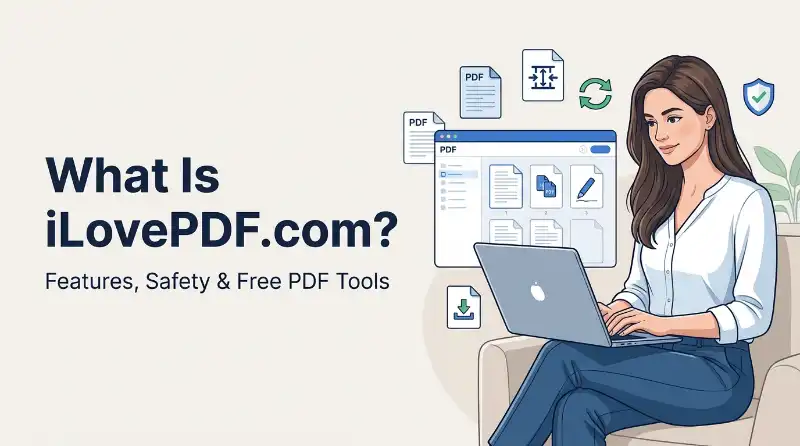
iLovePDF.com is an online platform that provides tools for working with PDF documents. It helps users merge, split, compress, convert, edit, organize, sign, and protect PDF files without needing complicated desktop software for every task.
The platform is operated by ILOVEPDF, S.L., a company registered in Barcelona, Spain. Its main purpose is to make everyday document tasks easier for students, office workers, businesses, and anyone who regularly works with digital files.
Unlike a regular website that publishes articles or news, iLovePDF focuses on document processing. You visit the website, choose a tool, upload a document, complete the task, and download the processed file.
For example, imagine your teacher asks you to submit several assignments as one PDF. Instead of opening a complicated editing program, you can use the Merge PDF tool to combine those documents.
You can also use the platform to:
- Reduce the size of large PDF documents.
- Convert PDF files into editable Word documents.
- Turn JPG images into PDF files.
- Extract or remove individual PDF pages.
- Add text, images, and page numbers.
- Protect documents with passwords.
- Add electronic signatures.
- Convert scanned documents into searchable text with OCR tools.
iLovePDF also supports connections with cloud storage services such as Google Drive and Dropbox, allowing users to select documents without first downloading every file to their computer.
In short, iLovePDF is a PDF management platform designed to make common document tasks quicker and easier.
2. What Can You Do With iLovePDF? Main Tools and Features Explained
One of the main reasons people visit iLovePDF.com is its collection of PDF tools. Instead of using different programs for every small task, you can access several document-processing options from one website.
Here are the most useful features and what they actually do.
PDF Merge, Split and Remove Pages
The Merge PDF tool lets you combine two or more PDF documents into one file.
For example, if you have separate PDFs for your class notes, homework, and project instructions, you can combine them into a single document. You can also change their order before merging.
The Split PDF tool does the opposite. It allows you to divide a large PDF into smaller files or extract selected pages.
If a document contains 30 pages but you only need pages 5 through 10, splitting can save you time.
The Organize PDF and Remove Pages tools are useful when you want to rearrange a document or remove pages you no longer need.
Compress, Edit and Organize PDF Files
Large PDF files can become difficult to upload, email, or share. The Compress PDF tool reduces the file size to make it easier to send or store.
iLovePDF offers different compression levels, including regular, high, and extreme options. Keep in mind that stronger compression can reduce image quality.
The Edit PDF tool lets you add text, images, and shapes to an existing document. You can also use other tools to add page numbers, watermarks, and other elements.
These features are useful when you need to make small changes without rebuilding the entire document.
Convert PDF to Word, JPG and Other Formats
File conversion is another major part of iLovePDF.
Here are some common conversions:
- PDF to Word: Converts a PDF into an editable DOCX document.
- PDF to JPG: Turns PDF pages into image files.
- JPG to PDF: Combines one or more images into a PDF.
- Word to PDF: Converts Word documents into PDF files.
- PowerPoint to PDF: Changes presentations into PDF format.
- PDF to PDF/A: Converts documents into a format designed for long-term digital archiving.
For example, if someone sends you a PDF report and you need to change its text, the PDF to Word converter can help.
However, the converted document may not look exactly like the original. Complex tables, unusual fonts, columns, and images can sometimes move during conversion.
Always review the downloaded file before sharing or submitting it.
OCR, Unlock PDF and Electronic Signatures
OCR stands for Optical Character Recognition. It is a technology that recognizes text inside scanned documents and images.
Imagine you scan a printed page and save it as a PDF. The result may look like normal text, but your computer might treat the page as one large image.
OCR can recognize the letters and create a searchable text layer. This makes it easier to search, select, and sometimes edit the recognized text.
The Unlock PDF tool helps remove password protection from documents when you have the right to access them and can provide the required password where necessary. It should not be treated as a way to bypass someone else’s document security.
The Sign PDF tool lets you add an electronic signature to a document. You can create a signature by drawing it, uploading an existing signature image, or typing your name.
iLovePDF also provides signature-request workflows through its iLoveSign service.
Overall, these features make iLovePDF useful for more than simple file conversion.
3. How to Use iLovePDF.com: Merge, Compress and Convert PDFs
You don’t need advanced computer skills to use most iLovePDF tools. The website follows a fairly simple process: choose a tool, select your file, complete the operation, and download the result.
Here are three common examples.
How to Merge PDF Files on iLovePDF
If you want to combine multiple PDF files into one document, follow these steps:
- Open the official website at https://www.ilovepdf.com/.
- Find and select the Merge PDF tool.
- Click the option to select PDF files.
- Choose the documents stored on your computer.
- Arrange the files in the order you want.
- Click the Merge PDF button.
- Wait for the processing to finish.
- Download your combined PDF.
You can also import supported files from Google Drive or Dropbox.
Before downloading, check the document order. This is especially important when combining assignments, reports, or business documents.
You can access the tool directly here: https://www.ilovepdf.com/merge_pdf
How to Compress a PDF File
If your PDF is too large to upload or email, compression may help.
Here’s how to do it:
- Visit the Compress PDF page.
- Select the PDF file from your device or supported cloud storage.
- Upload the document.
- Choose a compression level.
- Click Compress PDF.
- Wait for iLovePDF to process the file.
- Download the smaller document.
- Open it and check its text and image quality.
The higher the compression level, the greater the potential reduction in file size. However, stronger compression can also affect image quality.
If your document contains important charts, photographs, or detailed graphics, compare the original and compressed versions before using the new file.
Official tool: https://www.ilovepdf.com/compress_pdf
How to Convert PDF to Word or JPG to PDF
Converting a PDF into Word is useful when you need to edit the document’s text.
Follow these steps:
- Open the PDF to Word tool.
- Select the PDF you want to convert.
- Upload your document.
- If the file is scanned, check whether OCR is needed and available.
- Start the conversion.
- Download the resulting DOCX file.
- Open it in Microsoft Word and check the formatting.
For JPG to PDF conversion:
- Open the JPG to PDF tool.
- Select one or more JPG images.
- Upload the pictures.
- Choose portrait or landscape orientation.
- Adjust the margins if needed.
- Decide whether to combine the images into one PDF.
- Click the conversion button.
- Download the finished PDF.
You can find these tools here:
- PDF to Word: https://www.ilovepdf.com/pdf_to_word
- JPG to PDF: https://www.ilovepdf.com/jpg_to_pdf
The exact options may vary depending on the tool, account type, and current website version.
4. Is iLovePDF.com Safe and Legit or a Scam?
If you’re thinking about uploading personal documents to iLovePDF, this is probably one of your biggest concerns.
The good news is that iLovePDF.com is an established PDF service operated by a named company. It has official terms, a privacy policy, security documentation, and a range of working document tools.
Its legal information identifies the operator as ILOVEPDF, S.L., based in Barcelona, Spain.
The company also publishes information about its security practices and data protection policies.
But being a legitimate website doesn’t automatically mean every document is safe to upload. It’s important to understand the difference between website legitimacy and file privacy.
Is ilovepdf.com the Official Website?
Yes. The official website is:
Always check the domain before uploading documents or entering account information.
A website with a similar name, a different domain extension, or an unfamiliar spelling should not automatically be treated as the official iLovePDF service.
Also, avoid downloading software from random advertisements or third-party pages claiming to offer an iLovePDF application.
Use the official website and its published app links instead.
What Do Its Security and Privacy Claims Show?
iLovePDF publishes a dedicated security page explaining its approach to protecting user information.
Some of the security measures and standards it describes include:
- HTTPS for secure communication.
- Encryption and document protection measures.
- Access control and security procedures.
- Security audits and ongoing monitoring.
- GDPR-related data protection practices.
- ISO/IEC 27001 information security certification.
The company also provides an ISO/IEC 27001:2022 certificate issued by Bureau Veritas.
However, there is one detail worth checking before relying on that certificate. The publicly available certificate copy lists November 11, 2026, as its expiration date. Since that date has passed, readers should check for an updated certificate before treating the certification as currently valid.
An HTTPS connection is useful because it helps protect information moving between your browser and the website. But HTTPS alone cannot guarantee that a service is completely secure.
Similarly, ISO certification relates to an information security management system. It does not mean every possible security risk has disappeared.
Should You Trust iLovePDF With Your Documents?
For ordinary PDF tasks, iLovePDF appears to be a legitimate and practical option.
You can use it for documents such as:
- Class notes.
- General reading materials.
- Non-confidential reports.
- Public documents.
- Everyday office files.
However, I would be more careful with sensitive documents.
For example, think twice before uploading:
- Government identification documents.
- Bank statements.
- Medical records.
- Confidential business contracts.
- Documents containing passwords or private financial information.
If you work with highly sensitive files, consider an offline PDF editor that processes documents directly on your computer.
The best approach is to choose the tool based on the sensitivity of the document, not just convenience.
My verdict: iLovePDF.com is a legitimate service, not an obvious scam website. It has published security and privacy information, but users should still make careful decisions about which documents they upload.
5. What Happens to Your Files After Uploading Them to iLovePDF?
This is an important question because PDF files often contain information that people don’t want shared with others.
Before using an online PDF converter, you should understand how it handles uploaded documents.
According to iLovePDF’s official Terms and Conditions, files processed through its regular services are automatically deleted from its servers within two hours after processing.
The company also says users can manually delete processed files through the download screen.
This is useful because your documents are not intended to remain permanently available through the ordinary processing workflow.
How Long Does iLovePDF Keep Your Uploaded Files?
For standard PDF processing, iLovePDF states that uploaded and processed files remain available for up to two hours.
After that period, the company says they are automatically deleted from its servers.
This applies to the ordinary document-processing services covered by the general terms.
You should still avoid assuming that every product follows exactly the same retention rules. Different services can have separate terms.
For example, electronic signature services may need to retain certain records for longer periods.
Does iLovePDF Use Your Documents for AI Training?
According to its official Privacy Policy, iLovePDF does not use the content of your uploaded documents to train, improve, or develop its own AI models or third-party AI models.
That is a useful privacy statement, particularly for users who work with documents containing personal information.
However, you should distinguish between processing a document to complete a task and using its content to train an AI model. These are two different activities.
The company’s policy addresses the latter, while its Terms explain the conditions under which document processing takes place.
Are Signed Documents Stored for Longer?
Yes, electronic signature services can follow different retention conditions.
iLovePDF’s general Terms specifically separate iLoveSign from the ordinary two-hour file deletion rule.
Its security documentation also describes longer retention for signed documents to meet legal requirements.
This makes sense because electronic signatures and audit trails can be important when verifying an agreement or documenting who signed a file.
If you plan to use iLoveSign for contracts or other legal documents, read the specific terms for that service rather than relying only on the standard PDF deletion policy.
My privacy advice: For normal documents, the published two-hour deletion policy is reassuring. For confidential documents, check the relevant terms first and consider local processing when privacy is a major concern.
6. Is iLovePDF Free? Free vs Premium Features and Limits
You don’t necessarily need a paid subscription to use iLovePDF.
The platform offers a Basic free plan, along with Premium and Business options.
However, the free plan has restrictions, so it’s worth understanding what you get before choosing an account.
What Can You Do With the Free iLovePDF Plan?
The free version provides access to essential PDF tools.
Depending on the tool, you may be able to:
- Merge PDF documents.
- Split PDF files.
- Compress documents.
- Convert supported file formats.
- Organize PDF pages.
- Use other basic document-processing features.
The main limitation is that free users have restricted access to certain tools and document-processing capacity.
For someone who only needs to merge a few files or convert an occasional document, the free plan may be enough.
You should check the current limits for the particular tool you’re using because restrictions can differ between features.
What Does iLovePDF Premium Include?
Premium is designed for people who regularly work with PDF documents.
According to the current pricing page, its listed features include:
- Access to all iLovePDF tools.
- Unlimited document processing under the plan’s terms.
- Web, Mobile, and Desktop access.
- Digital signatures.
- Workflows.
- An ad-free experience.
- Priority customer support.
- Regional file processing.
- AI credits.
The Business plan is aimed at teams and organizations that need additional management options, including Single Sign-On and customized business arrangements.
Pricing can change based on billing period, region, and subscription options. Check the official pricing page before making a payment:
Is iLovePDF Premium Worth Paying For?
That depends on how often you use PDF tools.
The free plan is a reasonable choice if:
- You only process a few files occasionally.
- You mainly merge or compress PDFs.
- You don’t need advanced features.
- You can work within the available processing limits.
Premium may make sense if:
- You work with PDFs almost every day.
- You frequently process multiple documents.
- You need additional tools.
- You want access across different devices.
- You use digital signatures and document workflows.
Business may be worth considering if:
- Multiple employees need access.
- Your organization needs centralized account management.
- Your team requires SSO or customized arrangements.
My suggestion is simple: start with the free plan. If you regularly hit its limits or need features that are only available with a paid subscription, then consider Premium.
There is no good reason to pay for features you rarely use.
7. How to Create an iLovePDF Account and Log In
You can create an iLovePDF account if you want to manage your services and access account-based features.
According to its Terms and Conditions, registration can be completed using your name, email address, and a password. The platform also lists Google, Facebook, and Apple sign-in options.
Here’s how the process works.
How to Create a Free iLovePDF Account
- Visit https://www.ilovepdf.com/.
- Open the account registration option.
- Select Create Account or Sign Up.
- Enter your name and email address.
- Create a secure password.
- Complete any required verification steps.
- Submit your registration.
- Return to the login page and access your account.
You can also use an available social sign-in option if you prefer not to create a separate password.
Registration requirements may vary depending on the service you’re trying to access.
How to Log In to iLovePDF
If you already have an account, follow these steps:
- Visit the official login page: https://www.ilovepdf.com/auth
- Enter your registered email address.
- Type your password.
- Click Log In.
- Wait for your account workspace to open.
Once logged in, you can access the account features available under your plan.
What to Do If You Forget Your Password
Forgetting your password doesn’t mean you need to create a new account.
Follow these steps:
- Open the iLovePDF login page.
- Select Forgot Your Password.
- Enter the email address associated with your account.
- Complete the security check if requested.
- Check your email inbox for the reset instructions.
- Follow the instructions to create a new password.
Also check your spam folder if the recovery email doesn’t arrive.
Use the official recovery page:
One useful thing to know is that iLovePDF supports free accounts and unregistered free users. This means you may be able to complete certain basic PDF tasks without creating an account.
You don’t need to register just because you want to merge or compress a document.
8. Can You Use iLovePDF on Windows, Mac, Android and iPhone?
Yes. iLovePDF is not limited to its website.
The company also provides desktop and mobile applications, which can be useful if you work with PDF files regularly.
However, the experience is different depending on which version you choose.
Is There an iLovePDF Desktop App for Windows and Mac?
Yes. iLovePDF offers a Desktop application for Windows and macOS.
The desktop version is useful for people who want PDF tools directly on their computers.
Some of its features include:
- PDF reading.
- Merging and splitting documents.
- File compression.
- PDF conversion.
- Page organization.
- OCR features.
- Document protection.
- PDF/A conversion.
One major advantage is local processing.
The official desktop page explains that supported document tasks can be processed directly on your computer. This means your files can remain on your device instead of being uploaded to the online service for those local workflows.
It also supports offline document work, although certain features or account-related functions may still require an internet connection.
You can find the official application here:
Does iLovePDF Have an Android and iPhone App?
Yes. iLovePDF provides mobile applications for Android and iOS.
These apps are useful when you need to work with documents away from your computer.
For example, you can:
- Scan physical documents.
- Convert pictures into PDFs.
- Read PDF files.
- Add annotations.
- Highlight important text.
- Add electronic signatures.
- Organize documents.
- Compress files before sharing them.
Imagine you’re at school or work and someone asks you to send a signed document. Instead of waiting until you get home, you can use the mobile app to complete the task.
Official mobile page:
Is the Website Better Than the Desktop or Mobile App?
There isn’t one answer for everyone.
Here’s a simple comparison:
| Version | Best For |
|---|---|
| Website | Quick PDF tasks without installing software |
| Desktop | Regular computer work and supported local processing |
| Mobile | Scanning, signing, and managing documents on the go |
If you only need to merge two PDFs, the website is probably the easiest choice.
If you regularly handle confidential files, the desktop application may be more suitable because of its local processing options.
If you mainly use your phone, the mobile application is more convenient.
Choose the version that matches your device and the type of documents you handle.
9. What Are iLovePDF’s Limitations? OCR, File Size and Conversion Problems
Although iLovePDF offers many useful features, it isn’t perfect.
Like other online PDF tools, it has limitations that can affect the final result.
Knowing these problems in advance can save you time.
Why Does PDF to Word Conversion Sometimes Change Formatting?
PDF files are designed to preserve a document’s appearance. Word documents, on the other hand, are designed for editing.
Because of this difference, converting a PDF into Word isn’t always perfect.
You might notice:
- Text moving to different positions.
- Tables losing their original layout.
- Images appearing in the wrong places.
- Fonts changing.
- Spacing becoming uneven.
- Multiple columns turning into confusing paragraphs.
This is more common with complex documents, scanned pages, and files containing unusual layouts.
What can you do?
After converting a PDF to Word, open the DOCX file in Microsoft Word and review every important page.
Check tables, headings, images, and page breaks before sharing the document.
If the PDF contains scanned images rather than selectable text, OCR may be necessary.
Can iLovePDF Convert Scanned PDFs Into Editable Text?
A scanned PDF is different from a normal text-based PDF.
For example, when you scan a printed document, your scanner may save each page as an image. You can see the words, but you may not be able to select or copy them.
This is where OCR becomes useful.
Optical Character Recognition analyzes the image and identifies letters and words.
iLovePDF offers OCR-related functionality, including support for scanned-document workflows. Availability and processing limits can depend on the tool and account plan.
However, OCR isn’t always 100% accurate.
Poor image quality, handwriting, unusual fonts, and low-resolution scans can lead to recognition mistakes.
Always check the extracted text before using it in an important report or official document.
What Are the Common Free Plan and Upload Limitations?
The free version has processing restrictions.
These may affect:
- The number of tasks you can complete.
- The number of files processed together.
- Available tools.
- File size limits.
- Advanced processing features.
The exact limits depend on the tool and current account plan, so don’t assume every feature has the same restriction.
You may also experience problems when:
- Your internet connection is unstable.
- A PDF is damaged.
- A document is unusually large.
- Your browser stops responding.
- A download is interrupted.
- A password-protected document cannot be opened.
Here are a few simple things to try:
- Check your internet connection.
- Try uploading the document again.
- Make sure the PDF opens correctly on your device.
- Try a smaller file if the original is very large.
- Use a different browser if the upload fails.
- Check whether the selected tool has a processing limit.
- Download the result again if the first download was interrupted.
If a document still doesn’t work, try another PDF application.
No single online converter can handle every document perfectly.
10. Is iLovePDF Worth Using? Best Alternatives and Final Verdict
After looking at its tools, privacy information, account options, and limitations, iLovePDF appears to be a useful option for everyday PDF work.
But it isn’t the only choice.
Depending on your needs, another PDF platform may suit you better.
iLovePDF vs Smallpdf, PDF24 and Adobe Acrobat
Here are three alternatives worth considering.
Smallpdf
Smallpdf is another online PDF platform that provides tools for converting, compressing, editing, and organizing PDF documents.
It’s worth comparing if you want another browser-based solution.
Website: https://smallpdf.com/
PDF24
PDF24 provides free PDF tools and a desktop application called PDF24 Creator.
It’s worth considering if you prefer desktop-based PDF workflows and want access to tools without relying entirely on an online service.
Website: https://www.pdf24.org/
Adobe Acrobat
Adobe Acrobat is a well-known PDF software platform with advanced document editing, conversion, signing, and document management features.
It may be a better fit for people who need more advanced PDF functionality, especially in professional environments.
Website: https://www.adobe.com/acrobat.html
Here’s a quick comparison:
| Platform | Best For |
|---|---|
| iLovePDF | Everyday online PDF tasks |
| Smallpdf | Alternative online PDF tools |
| PDF24 | Free desktop PDF workflows |
| Adobe Acrobat | Advanced PDF editing and document management |
The best choice depends on your budget, privacy requirements, and the features you actually need.
Who Should Use iLovePDF and Who Should Avoid It?
iLovePDF can be a good choice for:
- Students combining assignments and notes.
- Teachers organizing learning materials.
- Office workers converting documents.
- Freelancers preparing PDFs for clients.
- People reducing large files before sharing them.
- Users who occasionally need to sign or edit documents.
However, you should consider another solution if:
- You regularly process highly confidential documents.
- You need advanced professional PDF editing.
- You require a specific business compliance setup.
- You need complete control over local document processing.
- The free plan doesn’t meet your processing requirements.
For sensitive documents, consider a suitable offline application and review its security features before choosing it.
Frequently Asked Questions About iLovePDF
Does iLovePDF work without an account?
Yes. iLovePDF supports unregistered free users, and certain basic PDF tools can be used without creating an account. Some features may require registration or a paid plan.
Does iLovePDF add a watermark to converted PDFs?
Its standard PDF conversion tools do not generally require a watermark just because you use the free service. However, check the output of the specific tool you’re using, especially when applying a watermark yourself.
Can iLovePDF open password-protected PDFs?
Some tools support password-protected documents when you provide the required password. The Unlock PDF tool can also help remove protection when you are authorized to do so and meet its requirements.
Can I use iLovePDF on my phone?
Yes. iLovePDF offers mobile applications for Android and iOS. You can use supported tools to read, scan, edit, sign, and manage PDF documents.
Does iLovePDF work offline?
The regular website requires an internet connection because it processes documents online. The Desktop application supports offline processing for supported tasks.
Is iLovePDF better than Smallpdf?
Neither platform is automatically better for everyone. Compare their current features, processing limits, pricing, and privacy policies before choosing one.
Can iLovePDF convert PDF to Word for free?
The platform provides PDF to Word conversion, but free usage is subject to the current plan’s restrictions. Check the tool and pricing page for the latest availability and limits.
Can I use iLovePDF for business documents?
Yes, the platform offers tools and business plans for professional document workflows. However, businesses should review the security, privacy, and contractual requirements before uploading confidential information.
Final Thoughts From Me, Mushtaq
So, is iLovePDF.com worth using?
In my view, yes. It’s a legitimate PDF management platform with a useful collection of tools for everyday document tasks. You can merge files, compress PDFs, convert documents, organize pages, and add signatures without needing advanced editing skills.
Its free plan can be enough for occasional users, while Premium offers additional features for people who work with documents regularly.
I also like that the company publishes information about file deletion, privacy, and security. Still, no online service should receive every personal document without careful thought.
If you’re working with ordinary PDFs, iLovePDF is worth trying. If you’re handling confidential records, consider its desktop application’s local processing options or another suitable offline solution.
My final verdict: iLovePDF.com is a practical choice for everyday PDF management, provided you understand its limitations and choose the right processing method for your documents.
BMI & BMR CALCULATOR - CHECK YOUR HEALTH